
Instructions below
How to convert folder to ZIP file?
Below are step by step instructions for compressing a folder online using ezyZip.
-
Select folder to compressClick "Select folder to compress" to bring up the folder chooser

-
(Optional) Set compression level(Optional) Set the desired compression level by clicking the down arrow next to "Zip Folder".
-
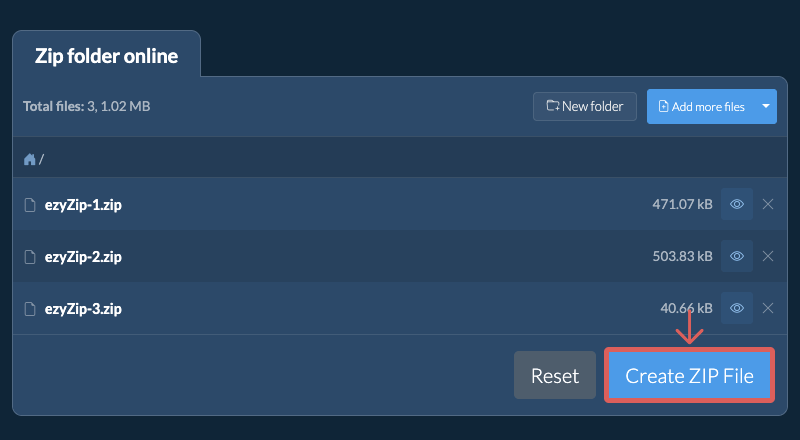
Click Zip FolderClick "Zip Folder". It will start compressing the contents of the folder.
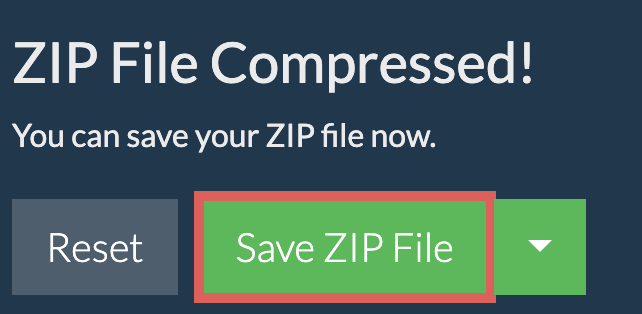
Once all the files are compressed, the "Save ZIP File" button will appear.
-
Save your archiveClick "Save ZIP File" to save the folder archive to your selected destination folder.
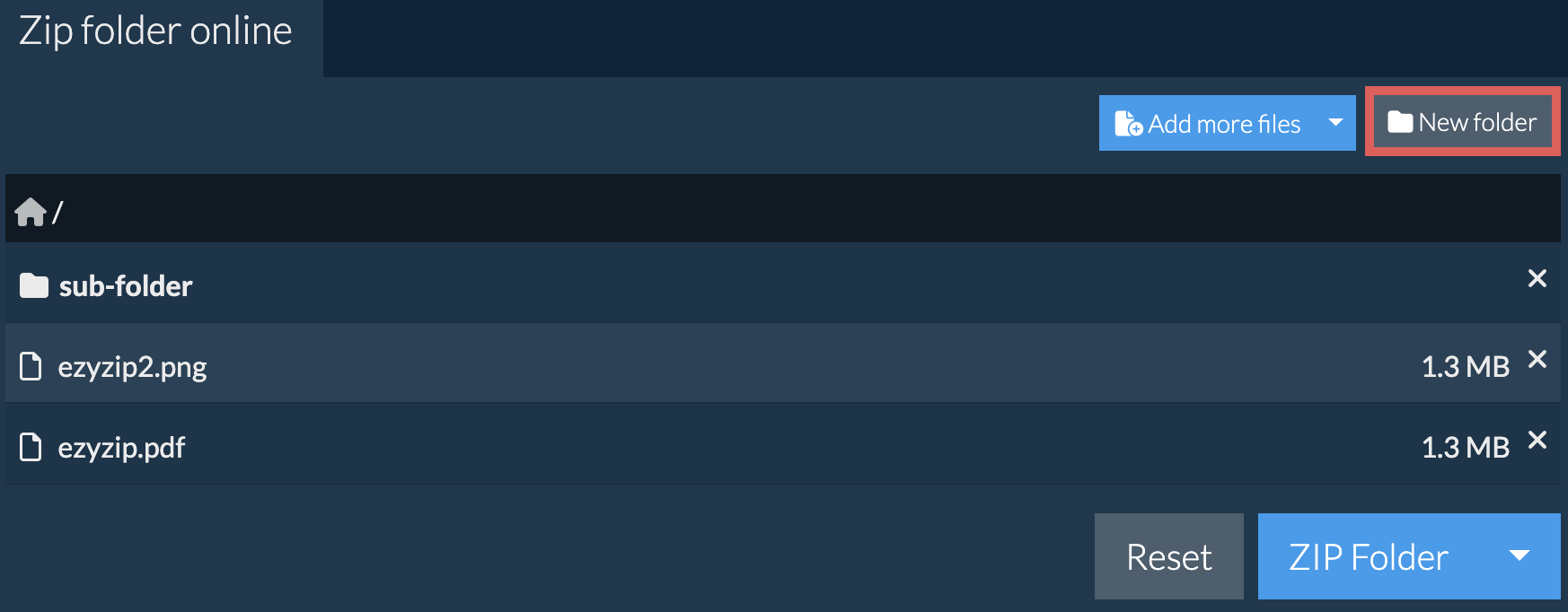
After you have selected your initial folder to compress, you can add extra subfolders and files to the archive.
-
Click the New folder buttonClick on 'New folder' in top right corner.
-
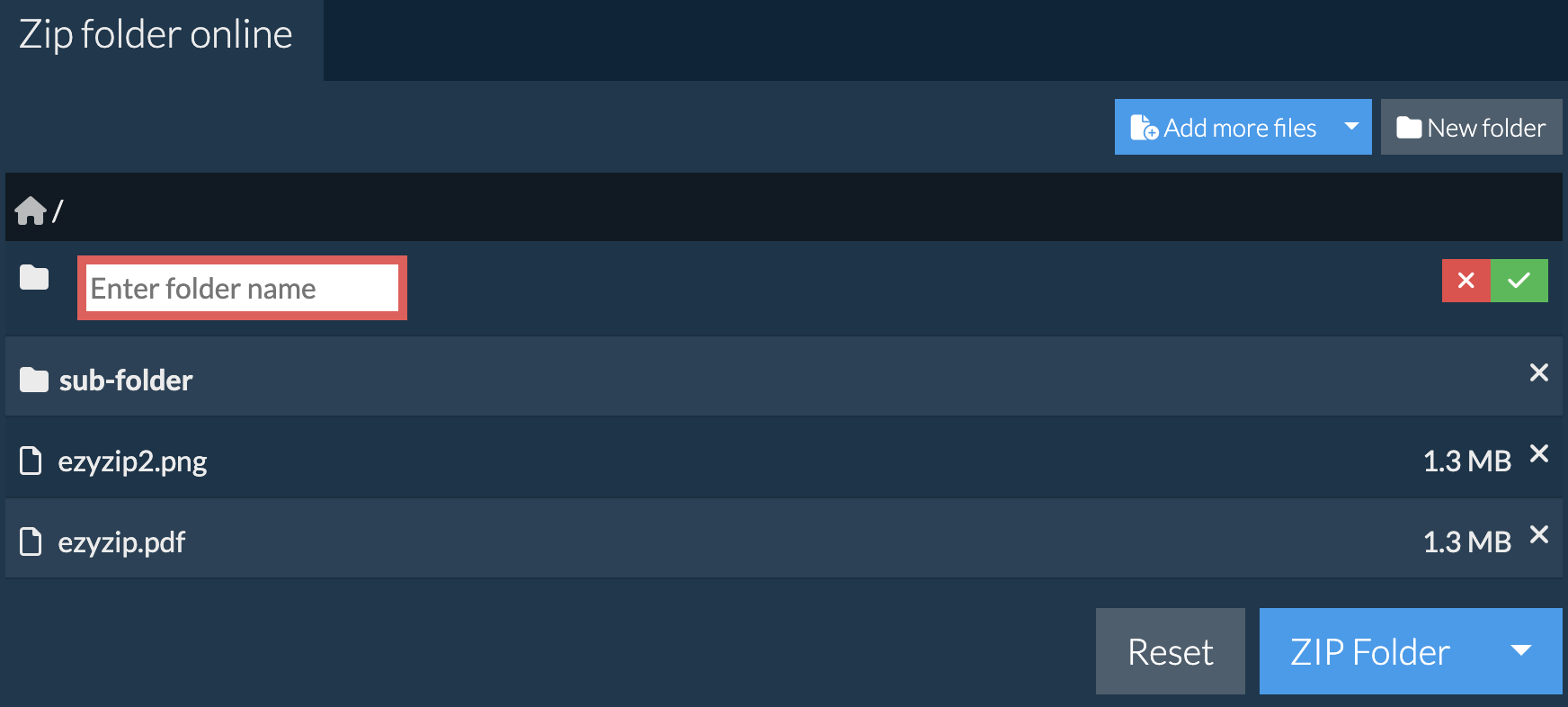
Name your folderGive your new folder a name and press enter or click the green tick.
-
Folder addedIt will add the folder to the contents of the ZIP archive.
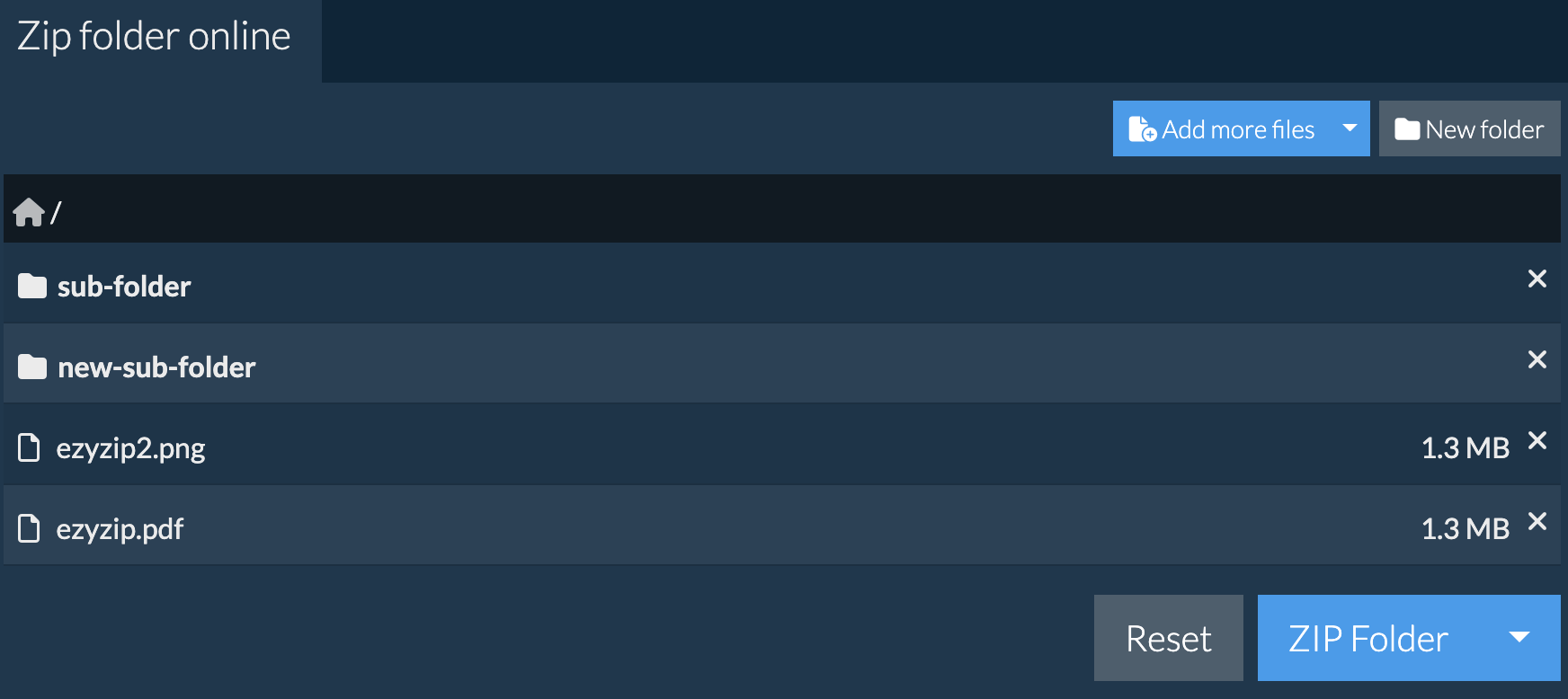
-
Populate the folderClick on the new folder to activate it. Then click on "Add more files" to populate it with files.
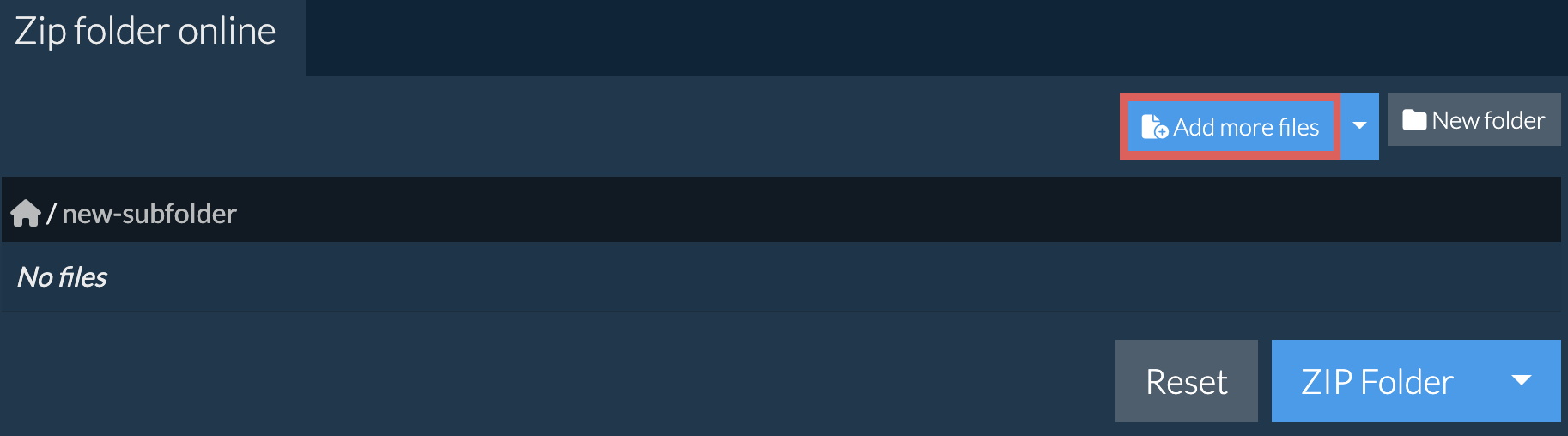
-
Select from DropboxClick the down arrow (▾) next to the folder selection button, then choose "Select from Dropbox".

-
Choose the folderA small ezyZip window opens. Click "Continue to Dropbox", sign in to Dropbox if asked, then choose the folder.
-
Download the ZIP fileWhen "ZIP File Compressed!" appears, click "Save ZIP File" to download the folder as a ZIP file.
Frequently asked questions
Alternately you could try using the individual file zipper.
Please let us know via the feedback form if you have any issues.
Just think of it as a directory that may contain files and more sub-directories once it is opened by a zip utility program. It compresses the data using a lossless algorithm meaning there is no file quality degradation like in some compression formats (e.g. mp3, jpeg). The compression algorithm can vary however the most common is DEFLATE. The standard is constantly evolving with new algorithm and encryption options are added at regular intervals.
ezyZip offers various options to manipulate zip files including zipping individual files, create a zipped folder, extracting zip files or converting zip files.
Need help zipping files with native tools? Check out guides for Windows, MacOS and Linux.
Unlike other online archiving utilities, ezyZip DOES NOT require you to upload / download files to a server. It runs locally as a browser app, thus making it much quicker than other online file compressors. This also helps protect your privacy, because your files are processed in your browser and are not uploaded. All common file compression formats (and most uncommon) are supported.
ezyZip processes files directly in your browser. Unlike most online tools, your files are not uploaded to our servers, which means faster processing and better privacy. Take a look at the feature comparison below and we think you'll agree that ezyZip is the better choice for your file conversion needs.
| Feature | ezyZip | Other Online Tools |
|---|---|---|
| No Software Installation | Works Directly in Browser | Works Directly in Browser |
| Processing Location | Your Browser (No Upload) | Their Servers (Upload Required) |
| Privacy & Security | Files Stay on Your Device | Files Uploaded, Accessible by Others |
| Processing Speed | Fast (No Upload/Download Time) | Slow (Upload + Process + Download) |
| Works Offline | Yes (After Page Load) | No |
| Established | Since 2009 (15+ Years) | Recent (May Disappear) |