
Extraction instructions below
How do I extract password protected ZIP files?
Extracting password locked ZIP files is easy with ezyZip.
-
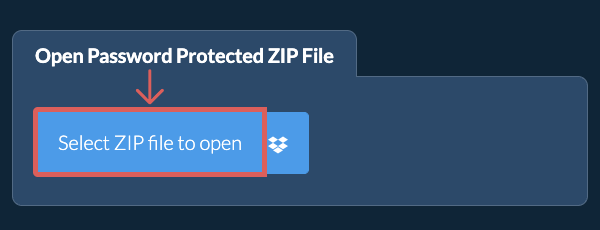
Select File To select the ZIP file, you have two options:
-
Click "Select zip file to extract" to open the file chooser
- Drag and drop the ZIP file directly onto the unzip files panel
Click "Select zip file to extract" to open the file chooser -
-
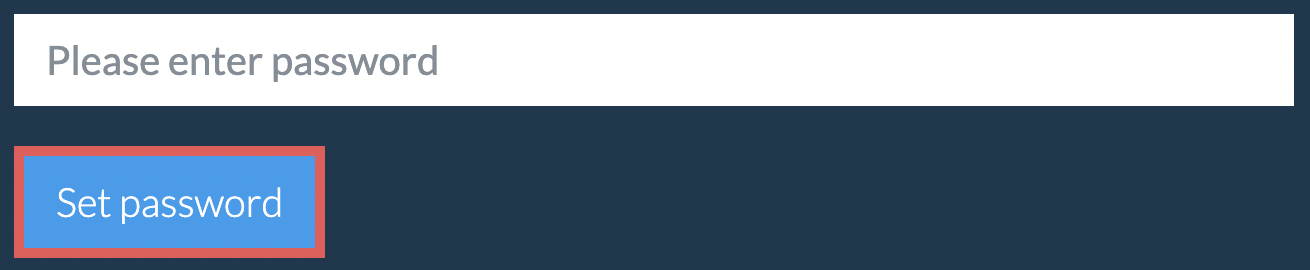
Enter PasswordIt will give you a password prompt. Enter the correct password and click "Set Password".
-
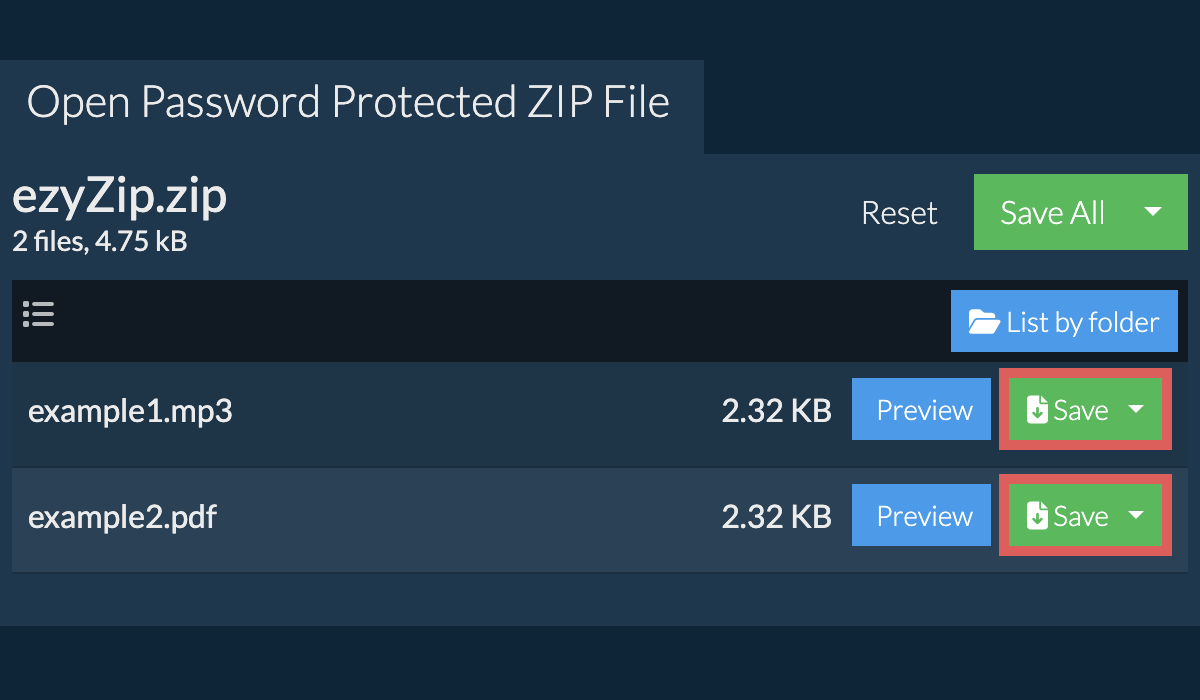
View ContentsIt will start the file extraction and list the contents of the ZIP file once complete.
-
Save FilesClick "Save" on the individual files to save file to your local drive.
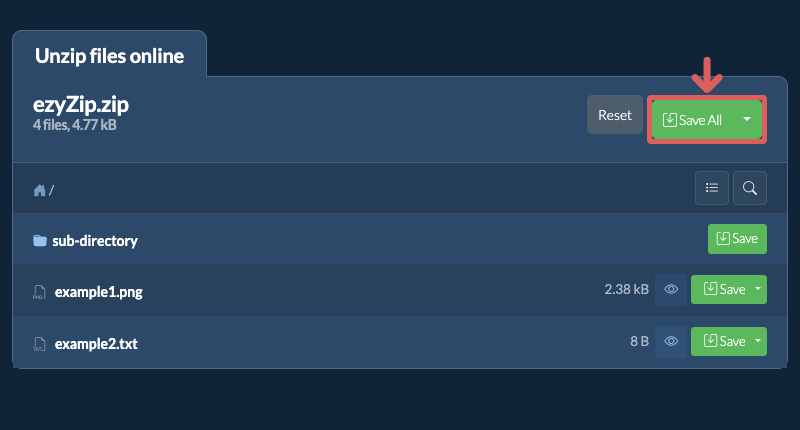
Some newer browsers allow the saving of multiple files & folders into a designated target folder in one go. If you wish to extract all files in the ZIP file and maintain existing folder structure, follow the steps the below:
-
Open FileFollow the above instructions to open ZIP file
-
Click Save AllClick on "Save All". If the button is disabled, it means your browser does not support this feature or it is not enabled.
-
Choose Destination FolderSelect an empty folder where you wish to extract the files. Please note: If you already have files with the same name, ezyZip WILL OVERWRITE THEM.
-
Grant Folder AccessAfter you have selected the folder, the browser will ask for permission to access it. Click on "View files" followed by "Save changes".
-
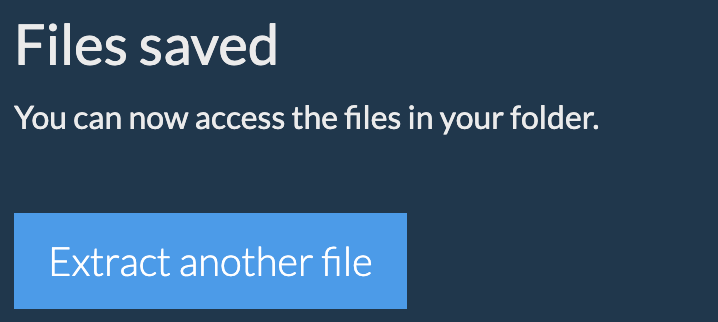
Files SavedIt will then commence saving files and subfolders into the target you specified
-
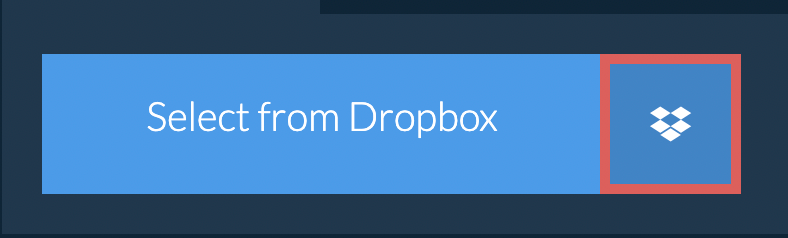
Select from DropboxClick the down arrow (▾) next to the ZIP file selection button, then choose "Select from Dropbox".
-
Pick your file(s)A small ezyZip window opens. Click "Continue to Dropbox", sign in to Dropbox if asked, then pick your file(s).
-
Browse the contentsezyZip downloads the ZIP file(s) into your browser and lists the contents.
-
Save to DropboxTo save a file, click the down arrow (▾) on its "Save" button and choose "Dropbox". To save all files, use the down arrow on the "Save All" button. The first time, Dropbox asks you to allow ezyZip access.
Files are saved in the /Apps/ezyZip folder.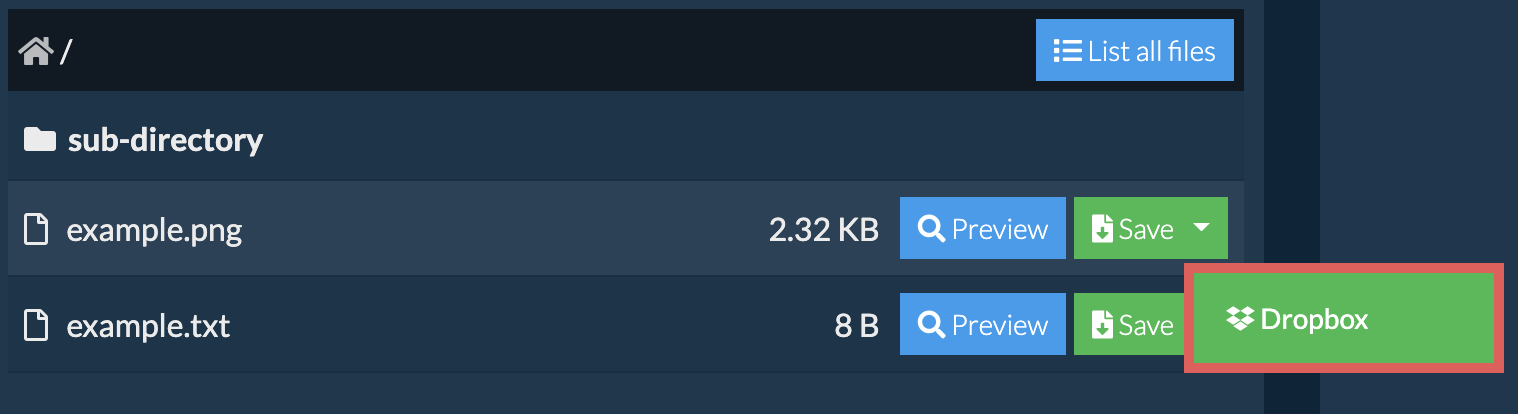
-
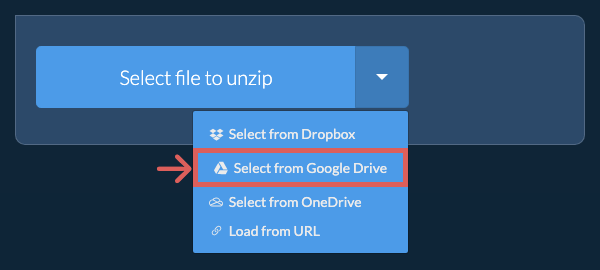
Select from Google DriveClick the down arrow (▾) next to the ZIP file selection button, then choose "Select from Google Drive".
-
Sign in and pick your file(s)A Google Drive window opens. Sign in to Google if asked, allow ezyZip to access the files you choose, then pick your file(s).
-
Browse the contentsezyZip downloads the ZIP file(s) into your browser and lists the contents.
-
Save to Google DriveTo save a file, click the down arrow (▾) on its "Save" button and choose "Google Drive". To save all files, use the down arrow on the "Save All" button. Sign in to Google if asked.
Files are saved in the My Drive/ezyZip folder.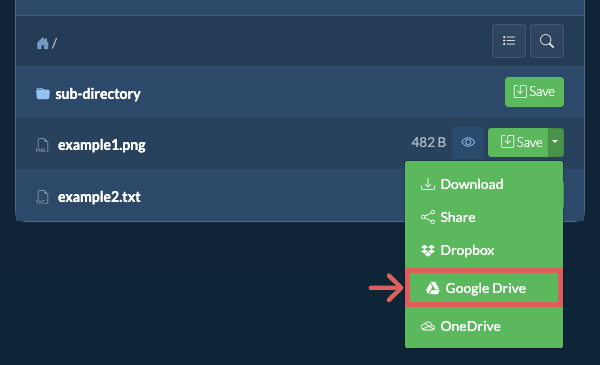
-
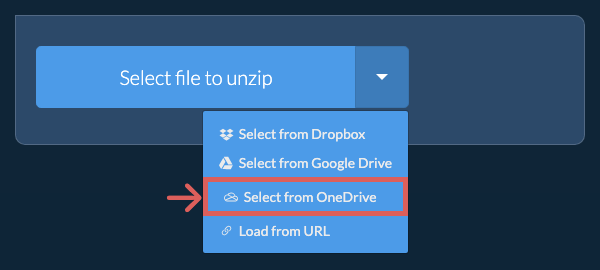
Select from OneDriveClick the down arrow (▾) next to the ZIP file selection button, then choose "Select from OneDrive".
-
Sign in and pick your file(s)A OneDrive window opens. Sign in with your personal Microsoft account if asked and allow ezyZip access, then pick your file(s).
-
Browse the contentsezyZip downloads the ZIP file(s) into your browser and lists the contents.
-
Save to OneDriveTo save a file, click the down arrow (▾) on its "Save" button and choose "OneDrive". To save all files, use the down arrow on the "Save All" button. Sign in with your Microsoft account if asked.
Files are saved in the Apps/ezyZip folder.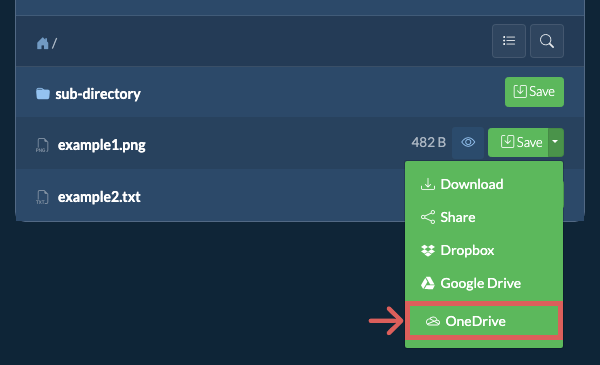
Frequently asked questions
We are continuously updating the system, so ensure you are using the latest version of one of the popular browsers or their variants. (e.g. Chrome, Firefox, Safari, Opera).
Please let us know via the feedback form if you have any issues.
ezyZip is a free zip and unzip online file compression tool that lets you zip files into an archive. It also supports unzip, allowing you to uncompress archived zip, zipx, 7z, rar, cab, tar, txz, tbz2, bz2, iso, lzh, deb, and tgz files. This includes password encrypted archive files!
Unlike other zip and unzip online utilities, ezyZip DOES NOT require you to upload / download files to a server. It runs locally as a browser app, thus making it much quicker than other similar zip and unzip online tools. This also ensures your privacy will be protected as no file data will leave your browser.
ezyZip processes files directly in your browser. Unlike most online tools, your files are not uploaded to our servers, which means faster processing and better privacy. Take a look at the feature comparison below and we think you'll agree that ezyZip is the better choice for your file conversion needs.
| Feature | ezyZip | Other Online Tools |
|---|---|---|
| No Software Installation | Works Directly in Browser | Works Directly in Browser |
| Processing Location | Your Browser (No Upload) | Their Servers (Upload Required) |
| Privacy & Security | 100% Private (Files Never Leave Your Device) | Files Uploaded, Accessible by Others |
| Processing Speed | Fast (No Upload/Download Time) | Slow (Upload + Process + Download) |
| Registration Required | Never | Often Required for Large Files |
| Works Offline | Yes (After Page Load) | No |
| Cost | 100% Free | Free with Limitations / Paid Tiers |
| Established | Since 2009 (15+ Years) | Recent (May Disappear) |