
Extraction instructions below
How do I unzip files?
Here are the steps to unzip a file using ezyZip.
-
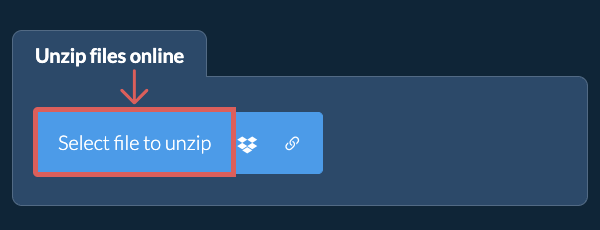
Select File To select the zip file, you have two options:
-
Click "Select file to unzip" to open the file chooser
- Drag and drop the zip file directly onto the unzip files panel
Click "Select file to unzip" to open the file chooser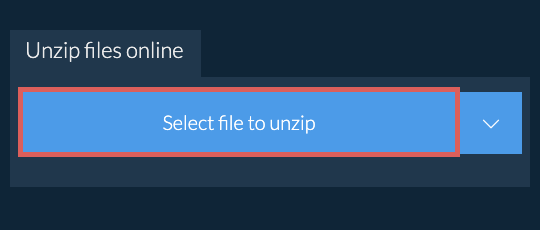
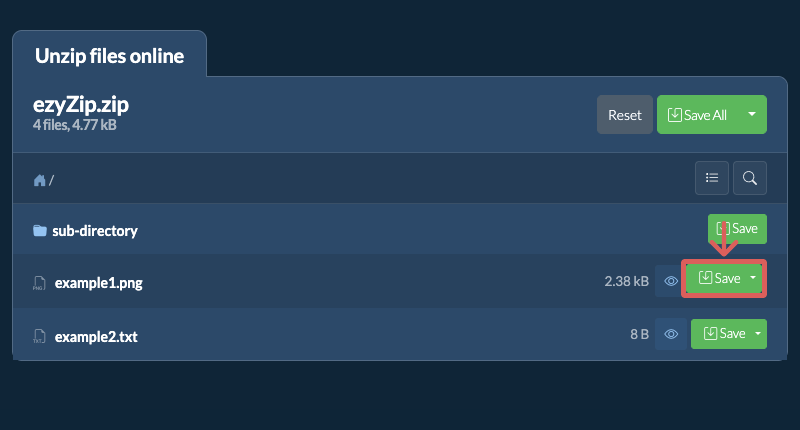
It will start the unzip process and list the contents of the zip file once complete.
-
-
Save FilesClick "Save" on the individual files to save file to your selected destination folder.
-
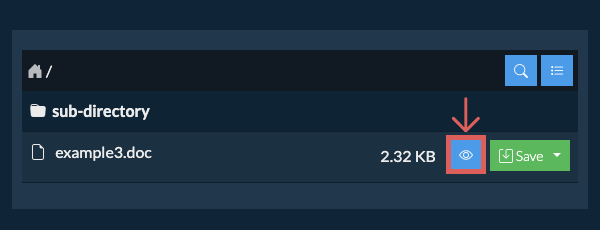
Preview / ShareOPTIONAL: Click "Preview" to open directly in the browser. Click "Share" to send via e-mail, messenger, or other services. These options are only available for some file types.
Some newer browsers allow the saving of multiple files & folders into a designated target folder in one go. If you wish to extract all files in the ZIP file and maintain existing folder structure, follow the steps the below:
-
Open FileFollow the above instructions to open ZIP file
-
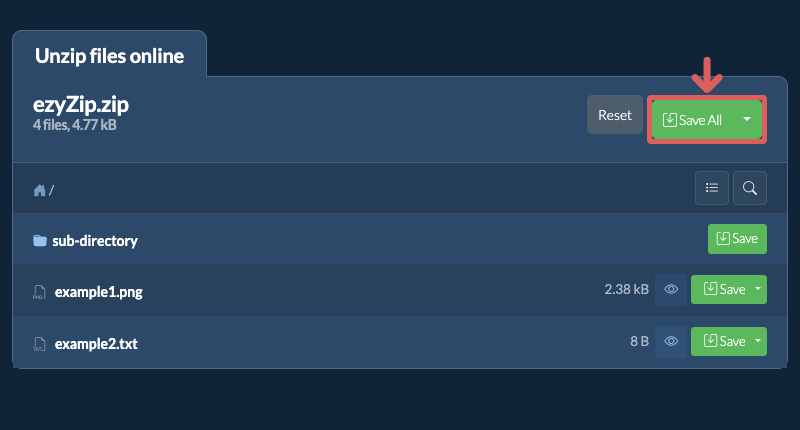
Click Save AllClick on "Save All". If the button is disabled, it means your browser does not support this feature or it is not enabled.
-
Choose Destination FolderSelect an empty folder where you wish to extract the files. Please note: If you already have files with the same name, ezyZip WILL OVERWRITE THEM.
-
Grant Folder AccessAfter you have selected the folder, the browser will ask for permission to access it. Click on "View files" followed by "Save changes".
-
Files SavedIt will then commence saving files and subfolders into the target you specified
Below are the steps for extracting a password protected ZIP archive using ezyZip.
-
Password PromptIf the ZIP file is password protected, you will be prompted for a password.
-
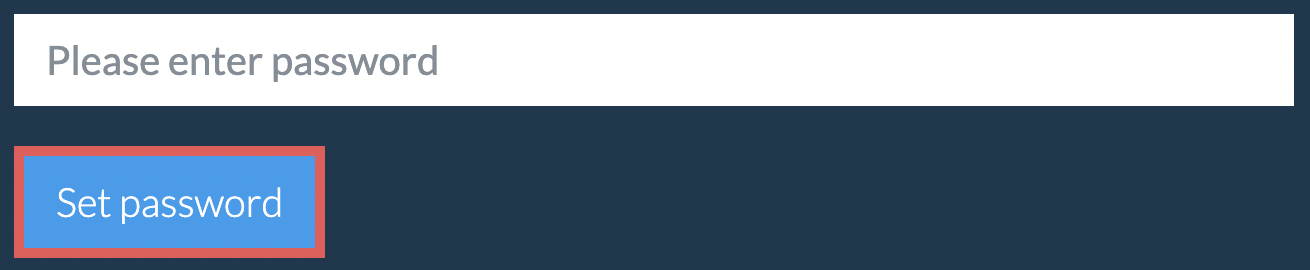
Set PasswordEnter the password and click "Set Password"
-
Extract FilesFollow instructions above to extract individual files
If you have forgotten or do not know the password, you can try to recover it using our ZIP password recovery tool.
ezyZip lets you quickly find files inside a ZIP archive without having to extract it first. This is especially handy for large archives with deep folder structures. Just use the built-in search to locate any file by name.
-
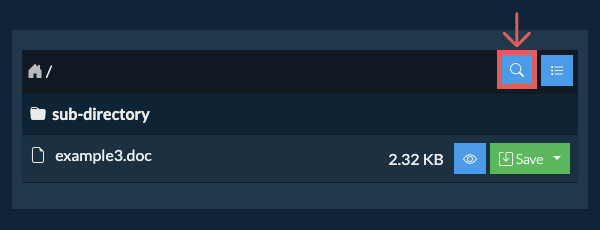
Open SearchClick the blue search icon in the top right corner of the file listing to open the search bar.
-
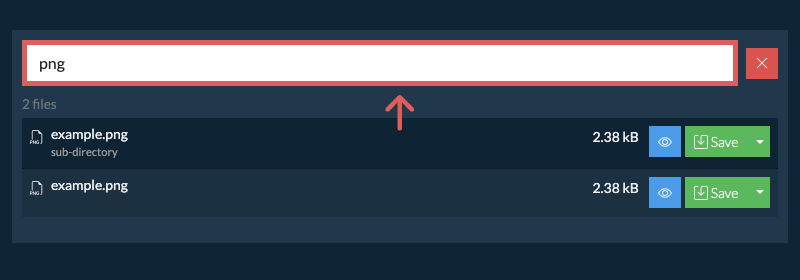
Enter Search TermType your search term into the input field. You need to enter at least 3 characters before results are shown.
-
Browse ResultsAll files that match your search term will be listed. From here, you can preview or save any file directly, or click the folder name shown beneath a file to jump straight to its location inside the archive.
If you want to see what's inside the ZIP file without having to extract all the files first, follow the steps below:
-
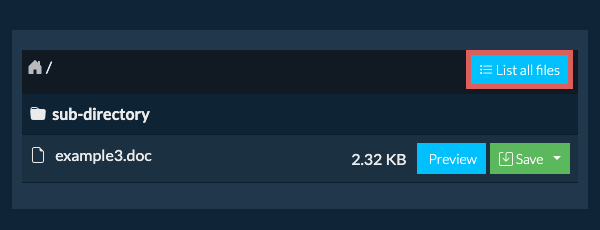
Open FileOpen the ZIP file, as per instructions above. It will initially list the contents of the ZIP hierarchically, sorted by folders.
-
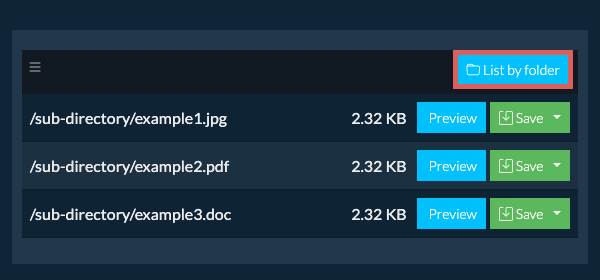
Show Full ListingClick on "List all files" to see the entire list of files inside the archive.
-
Switch to Folder ViewClick on "List by folder" to go back to folder view.
To extract just a subfolder and all its contents:
-
Open FileFollow the above instructions to open ZIP file
-
Navigate to SubfolderNavigate to the parent folder within the ZIP file
-
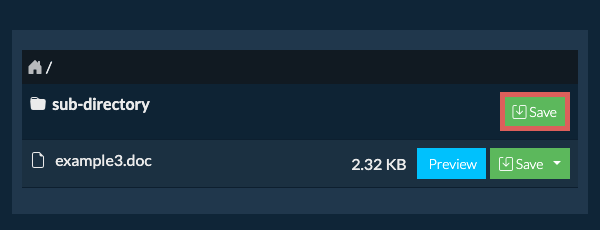
Save SubfolderClick the "Save" button on the row of the subfolder you want to extract
-
Files SavedAll files and folders from that subfolder will be saved to your chosen destination.
Please note: This feature is currently only available on supported browsers like Chrome and Edge.
Yes. If the ZIP is hosted online, you can extract it straight from the link without saving it to your computer first.
You'll need the free ezyZip Chrome or Firefox extension installed. It lets ezyZip download files from links on other websites.
Once the extension is installed, you have three ways to load a ZIP from a link:
-
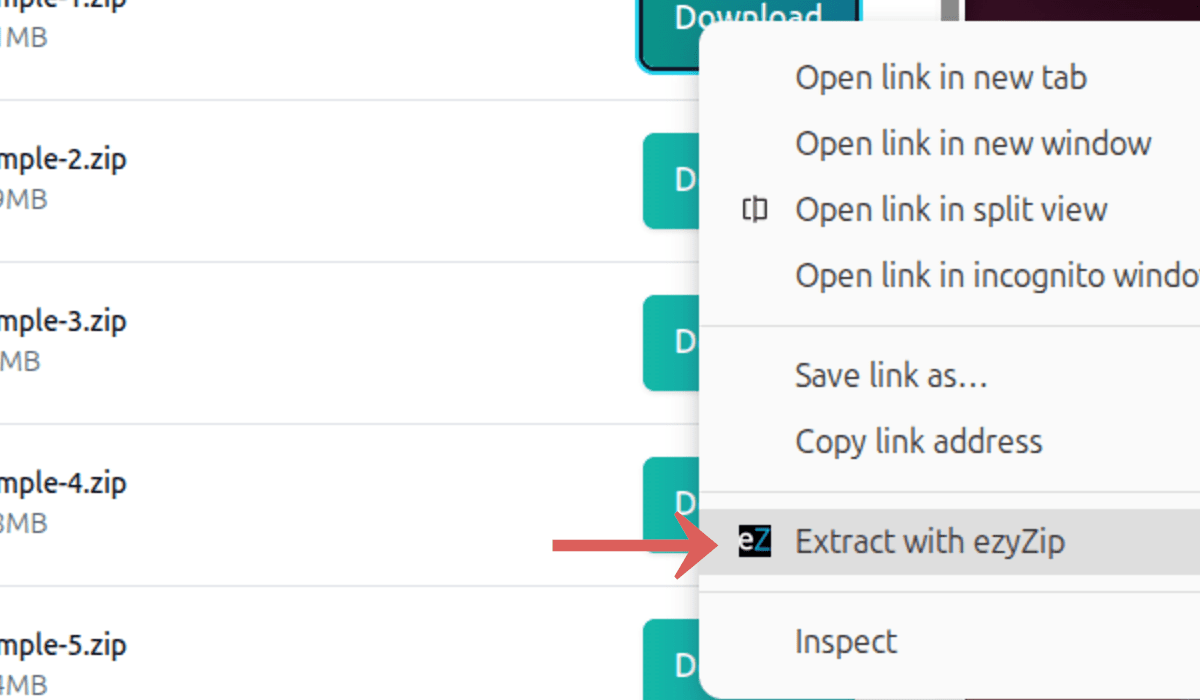
Right-Click the LinkRight-click the link on any webpage and choose "Extract with ezyZip" from the menu.
-
Paste the LinkClick the down arrow (▾) next to the ZIP file selection button and choose "Load from URL". Paste the link into the box that appears, then click "Load".

-
Drag and DropDrag the link from another browser tab and drop it onto the file chooser.
ezyZip will fetch the ZIP and extract its contents. Extraction runs entirely in your browser. No file data is sent to a server.
-
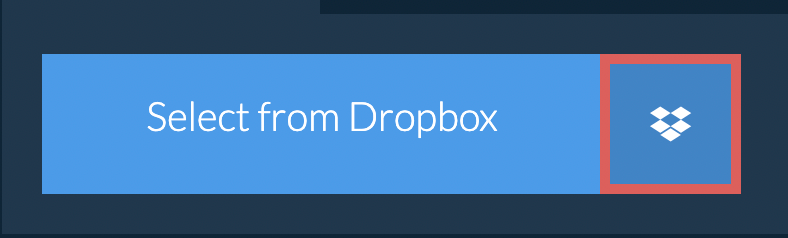
Select from DropboxClick the down arrow (▾) next to the zip file selection button, then choose "Select from Dropbox".
-
Pick your zip fileA small ezyZip window opens. Click "Continue to Dropbox", sign in to Dropbox if asked, then pick your zip file.
-
Browse the contentsezyZip downloads the zip file into your browser and lists its contents.
-
Save to DropboxTo save a file, click the down arrow (▾) on its "Save" button and choose "Dropbox". To save all files, use the down arrow on the "Save All" button. The first time, Dropbox asks you to allow ezyZip access.
Files are saved in the /Apps/ezyZip folder.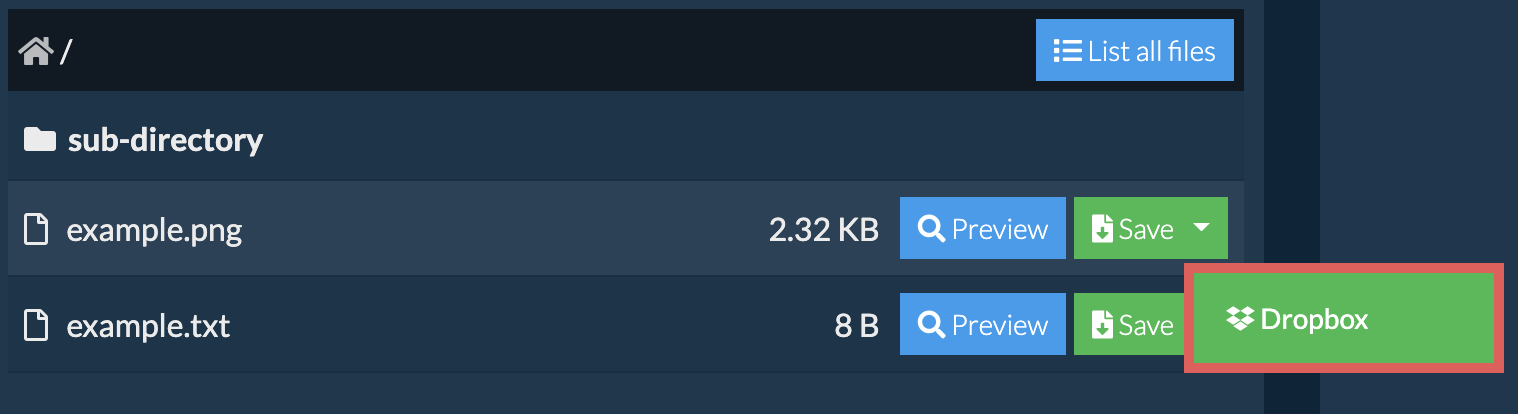
-
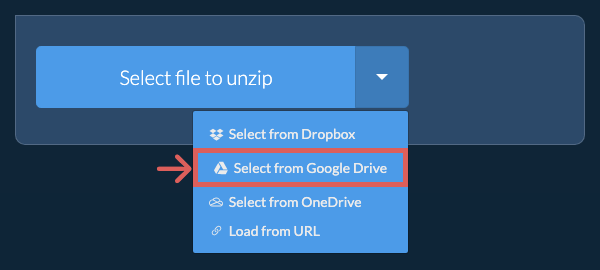
Select from Google DriveClick the down arrow (▾) next to the zip file selection button, then choose "Select from Google Drive".
-
Sign in and pick your zip fileA Google Drive window opens. Sign in to Google if asked, allow ezyZip to access the files you choose, then pick your zip file.
-
Browse the contentsezyZip downloads the zip file into your browser and lists its contents.
-
Save to Google DriveTo save a file, click the down arrow (▾) on its "Save" button and choose "Google Drive". To save all files, use the down arrow on the "Save All" button. Sign in to Google if asked.
Files are saved in the My Drive/ezyZip folder.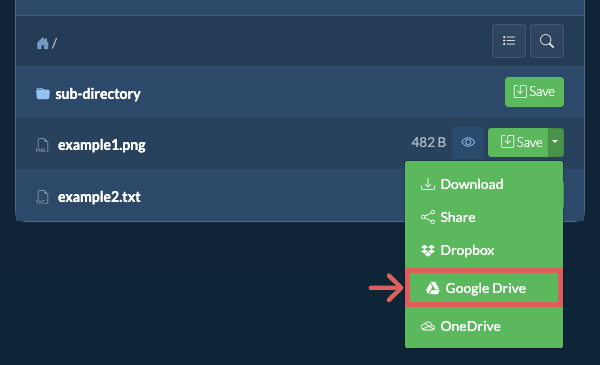
-
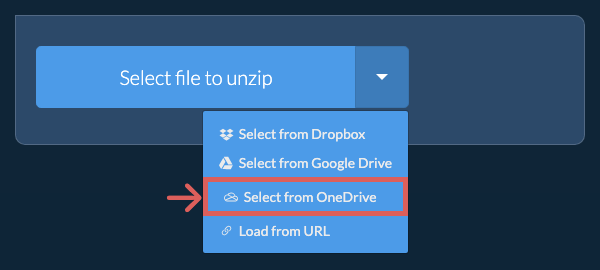
Select from OneDriveClick the down arrow (▾) next to the zip file selection button, then choose "Select from OneDrive".
-
Sign in and pick your zip fileA OneDrive window opens. Sign in with your personal Microsoft account if asked and allow ezyZip access, then pick your zip file.
-
Browse the contentsezyZip downloads the zip file into your browser and lists its contents.
-
Save to OneDriveTo save a file, click the down arrow (▾) on its "Save" button and choose "OneDrive". To save all files, use the down arrow on the "Save All" button. Sign in with your Microsoft account if asked.
Files are saved in the Apps/ezyZip folder.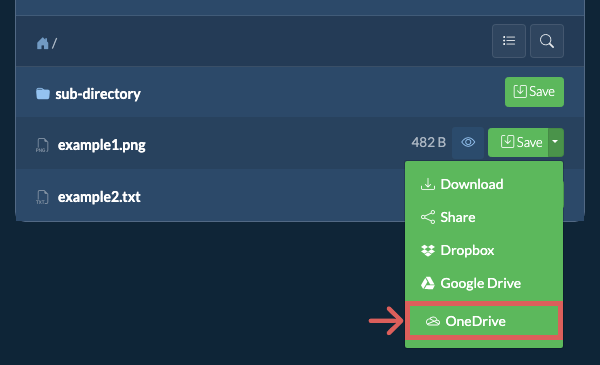
Frequently asked questions
We are continuously updating the system, so ensure you are using the latest version of one of the popular browsers or their variants. (e.g. Chrome, Firefox, Safari, Opera).
Please let us know via the feedback form if you have any issues.
ezyZip is a free zip and unzip online file compression tool that lets you zip files into an archive. It also supports unzip, allowing you to uncompress archived zip, zipx, 7z, rar, cab, tar, txz, tbz2, bz2, iso, lzh, deb, and tgz files. This includes password encrypted archive files!
Unlike other zip and unzip online utilities, ezyZip DOES NOT require you to upload / download files to a server. It runs locally as a browser app, thus making it much quicker than other similar zip and unzip online tools. This also ensures your privacy will be protected as no file data will leave your browser.
The following archive formats are supported:
- Common archives and compressed files: ZIP, ZIPX, RAR, 7Z, TAR, TAR.GZ, TGZ, TAR.BZ2, TBZ2, TBZ, TAR.XZ, TXZ, TAR.Z, TAR.LZ, TLZ, TAR.LZMA, TLZMA, TAR.BR, TBR, TRZ, GZIP, GZ, BZIP2, BZ2, XZ, LZMA, ZST, ZSTD, TZST, TZSTD, LZ4, TLZ4, LZO, TLZO, BZ3, TBZ3, BR, Z, ZLIB, ZL, SZ, LIZ, LZ5, RZ, LRZ, ZPAQ, BMZ, PEA, ALZ, EGG, SQX, ARJ, ACE, CAB, LZH, LHA, DAR, SHAR, CPIO, CPIO.GZ, CPIO.BZ2, CPIO.Z, PAX, PAX.GZ, PAX.BZ2, PAX.Z, ZI, ZI_, B64, TB64, B16, B32, UU, UUE
- Disk, disc and virtual machine images: ISO, IMG, BIN, NRG, CCD, MDS, CDI, TOAST, UDF, DMG, HFS, APFS, VDI, VMDK, VHD, VHDX, QCOW, QCOW2, QCOW3, WIM, SWM, ESD, FAT, EXT, EXT2, EXT3, EXT4, NTFS, SQUASHFS, CRAMFS, GPT, MBR, IMA
- Software packages, installers and executables: DEB, UDEB, RPM, SNAP, FLATPAK, APPIMAGE, RUN, PKG, XAR, XIP, AEA, YAA, AAR, MSI, MSU, MSIX, MSIXBUNDLE, APPX, APPXBUNDLE, EXE, DLL, SYS, OCX, SCR, SFX, NSIS, NSI, EX_, DL_, CAZIP, IBT, CHM, CHI, CHQ, ELF, A, AR, LIB, APK, XAPK, AAB, OBB, IPA, IPSW, JAR, WAR, EAR, JMOD, WHL, NUPKG, CRX, XPI, VSIX, ZXP, AIR, WGT, ASAR, SIS
- Game files: WAD, GRP, HOG, POD, PAK, PCK, VPK, FPX, FGP, XZP, PK3, PK4, PKZ, BSA, BA2, BIG, VIV, NCO, IWD, GMA, SCS, MPQ, W3X, W3M, SCM, SCX, SC2MAP, S2MA, UNITYPACKAGE, LOVE, MCPACK, MCWORLD, MCADDON, MCTEMPLATE, MCGAME, WBFS, WDF, WDF1, WDF2, CISO, WIA, GCZ, RVZ
- Documents, media and project files: CBZ, CBR, CB7, CBA, KMZ, WARC, WEBARCHIVE, MAFF, WEBZ, 3MF, USDZ, MSCZ, LXF, IFCZIP, HWT, MBZ, ZAB, AIA, SB3, SB2, SB, PIZ, GDZ, LQM, TPSR, UBZ
- Classic Mac: SIT, SITX, SEA, HQX, CPT, PIT, DD, NOW, AS, RSRC, TOME, DISKCOPY, NDIF
- Apple II: SHK, SDK, BXY, BNY, BSQ, BSC, PROG, 2MG, 2IMG, DO, PO, DSK, NIB, NB2, WOZ, D13, HDV
- Amiga: DMS, ADF, ADZ, HDF, LHF, LZX, PP, ICE, CRM, JAM, RNC1, RNC2, XPK, XPKF, IMP, SC, LOB, TPWM, VIC, VIC2, JEK, PMC1, PMC2
- DOS and other retro systems: ARC, ZOO, HA, UHA, UC2, HAP, HPK, HYP, LIM, SQZ, SAR, AIN, AKT, AMG, ARG, ARI, ARK, ARQ, ARX, ACB, B58, BOA, BS2, BSN, CHZ, CPZ, CRU, CWF, DWC, HIT, JRC, LZA, LZZ, LZS, MDCD, PLL, TPK, X, YC, ZET, GL, DXP, CMP, DAV, SHL, INS, PUT, QIP, RED, LIF, SHR, CMZ, ZPK, EA, MMCMP, LBR, SQ, SQUEEZE, CRLZH, ZSQ, PMA, TC, SPK, SQUASH, D64, T64
ezyZip processes files directly in your browser. Unlike most online tools, your files are not uploaded to our servers, which means faster processing and better privacy. Take a look at the feature comparison below and we think you'll agree that ezyZip is the better choice for your file conversion needs.
| Feature | ezyZip | Other Online Tools |
|---|---|---|
| No Software Installation | Works Directly in Browser | Works Directly in Browser |
| Processing Location | Your Browser (No Upload) | Their Servers (Upload Required) |
| Privacy & Security | 100% Private (Files Never Leave Your Device) | Files Uploaded, Accessible by Others |
| Processing Speed | Fast (No Upload/Download Time) | Slow (Upload + Process + Download) |
| Registration Required | Never | Often Required for Large Files |
| Works Offline | Yes (After Page Load) | No |
| File Size Limit | 2GB | 100MB - 200MB |
| Batch Operations | Save All Files to Folder | Download One by One |
| File Preview | Preview Before Download | No Preview Available |
| Supported Formats | 350+ Archive Formats | Limited Format Support |
| Cost | 100% Free | Free with Limitations / Paid Tiers |
| Established | Since 2009 (15+ Years) | Recent (May Disappear) |
Why client-side ZIP extraction is faster for large files
ezyZip extracts ZIP files using a streaming WebAssembly engine optimized for large archives. Here is why local extraction handles big files better:
- Direct Disk StreamingExtracted content writes directly to disk through FileSystemWritableFileStream, bypassing memory buffering entirely so extraction speed scales with disk I/O. This means even archives larger than your available RAM can be extracted without issues.
- Responsive ProcessingThe extraction engine runs in Web Workers on separate threads, keeping your browser responsive during CPU-intensive decompression. Real-time progress indicators show per-file extraction status so you always know how far along the operation is.
- Instant StartServer-based tools must receive your entire upload before extraction begins — local processing starts immediately from your filesystem. The difference is most noticeable with large archives where upload time alone can exceed the entire local extraction duration.
- Structure PreservationDirectory structures, character encodings, and file timestamps are preserved accurately through direct local filesystem access. Unicode filenames, deeply nested folders, and special characters are handled correctly without the encoding issues common in server-side processing.