
Compression instructions below
How do I reduce size of PNG files online?
Follow the instructions below to batch reduce all your PNG files in one go. There is no limit on the number of files!
-
Select image filesTo select PNG files to compress, you have two options:

-
(Optional) Set compression levelClick "Save" on each individual image to save a single shrunk PNG file to your local device

-
Compress imagesClick "Save All" to save all the reduced PNG files to a folder.

-
Save compressed imagesAlternately you can click "Save All To ZIP" to save all the compressed PNG files to a single ZIP archive.

More how-to guides
-
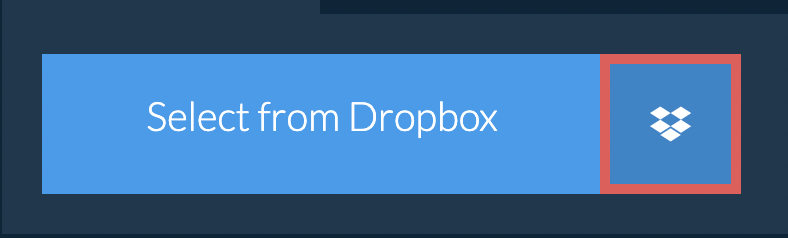
Select from DropboxClick the down arrow (▾) next to the file selection button, then choose "Select from Dropbox".
-
Pick your imagesA small ezyZip window opens. Click "Continue to Dropbox", sign in to Dropbox if asked, then pick what you want to compress.
-
Compress the imagesezyZip downloads your selection into your browser. Then follow the instructions above.
-
Save to DropboxWhen your file is ready, click the down arrow (▾) next to the save button and choose "Dropbox". The first time, Dropbox asks you to allow ezyZip access.
Files are saved in the /Apps/ezyZip folder.
-
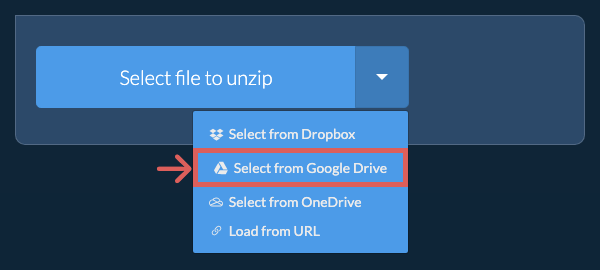
Select from Google DriveClick the down arrow (▾) next to the file selection button, then choose "Select from Google Drive".
-
Sign in and pick imagesA Google Drive window opens. Sign in to Google if asked, allow ezyZip to access the files you choose, then pick what you want to compress.
-
Compress the imagesezyZip downloads your selection into your browser. Then follow the instructions above.
-
Save to Google DriveWhen your file is ready, click the down arrow (▾) next to the save button and choose "Google Drive". Sign in to Google if asked.
Files are saved in the My Drive/ezyZip folder.
-
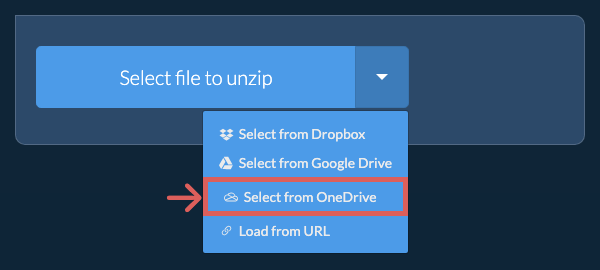
Select from OneDriveClick the down arrow (▾) next to the file selection button, then choose "Select from OneDrive".
-
Sign in and pick imagesA OneDrive window opens. Sign in with your personal Microsoft account if asked and allow ezyZip access, then pick what you want to compress.
-
Compress the imagesezyZip downloads your selection into your browser. Then follow the instructions above.
-
Save to OneDriveWhen your file is ready, click the down arrow (▾) next to the save button and choose "OneDrive". Sign in with your Microsoft account if asked.
Files are saved in the Apps/ezyZip folder.
Frequently asked questions
ezyZip is an online tool that supports any OS that can run a modern browser. We have tested it to work with Windows, MacOS, Linux (e.g. Ubuntu, Mint, Debian), Android, ChromeOS (Chromebook), iOS (iPhone, iPad & iPod Touch).
We are continuously updating the system, so ensure you are using the latest version of one of the popular browsers or their variants. (e.g. Chrome, Firefox, Safari, Opera).
Please let us know via the feedback form if you have any issues.
We are continuously updating the system, so ensure you are using the latest version of one of the popular browsers or their variants. (e.g. Chrome, Firefox, Safari, Opera).
Please let us know via the feedback form if you have any issues.
ezyZip is a collection of online compression tools, including this online PNG size reduction utility.
Unlike other online PNG compression utilities, ezyZip does not require you to upload or download files to a server. There are no usage limits, allowing you to create large compressed files. It runs locally as a browser app, thus making it much quicker than other similar image compression utilities. This also helps protect your privacy, because your files are processed in your browser and are not uploaded.
Unlike other online PNG compression utilities, ezyZip does not require you to upload or download files to a server. There are no usage limits, allowing you to create large compressed files. It runs locally as a browser app, thus making it much quicker than other similar image compression utilities. This also helps protect your privacy, because your files are processed in your browser and are not uploaded.
ezyZip processes files directly in your browser. Unlike most online tools, your files are not uploaded to our servers, which means faster processing and better privacy. Take a look at the feature comparison below and we think you'll agree that ezyZip is the better choice for your file conversion needs.
| Feature | ezyZip | Other Online Tools |
|---|---|---|
| No Software Installation | Works Directly in Browser | Works Directly in Browser |
| Processing Location | Your Browser (No Upload) | Their Servers (Upload Required) |
| Privacy & Security | Files Stay on Your Device | Files Uploaded, Accessible by Others |
| Processing Speed | Fast (No Upload/Download Time) | Slow (Upload + Process + Download) |
| Works Offline | Yes (After Page Load) | No |
| Image Format Support | 90+ Image Formats | Limited (JPEG, PNG, GIF only) |
| Compression Quality | Smart Quality Optimization | Basic Compression |
| Batch Processing | Process Multiple Images | One at a Time |
| Established | Since 2009 (15+ Years) | Recent (May Disappear) |
Why client-side PNG image compression is faster and more private
ezyZip compresses PNG images using a custom Emscripten-compiled WebAssembly engine running directly in your browser. Here is why our local image processor is superior:
- Professional-Grade AlgorithmsThe WASM module provides quantization, chroma subsampling, and progressive encoding optimizations that match desktop-class tools. You get the same compression quality as professional software like ImageMagick, running directly in your browser without any installation.
- Auto-Scaling MemoryWebAssembly linear memory grows automatically for high-resolution images, handling large files without crashes. Even 50+ megapixel camera RAW exports are processed without hitting memory ceilings that crash simpler browser-based tools.
- Batch Web WorkersBatch processing runs through dedicated Web Workers with per-image progress tracking and adjustable quality level controls. Process entire photo galleries at once while monitoring compression results for each image individually.
- Lossless and Lossy ModesChoose between lossless compression that preserves every pixel and lossy compression with configurable quality thresholds. The engine provides real-time file size estimates so you can balance quality against size before committing.