
Compression instructions below
How do I create FPX file?
Below are step by step instructions for creating FPX archives using ezyZip.
-
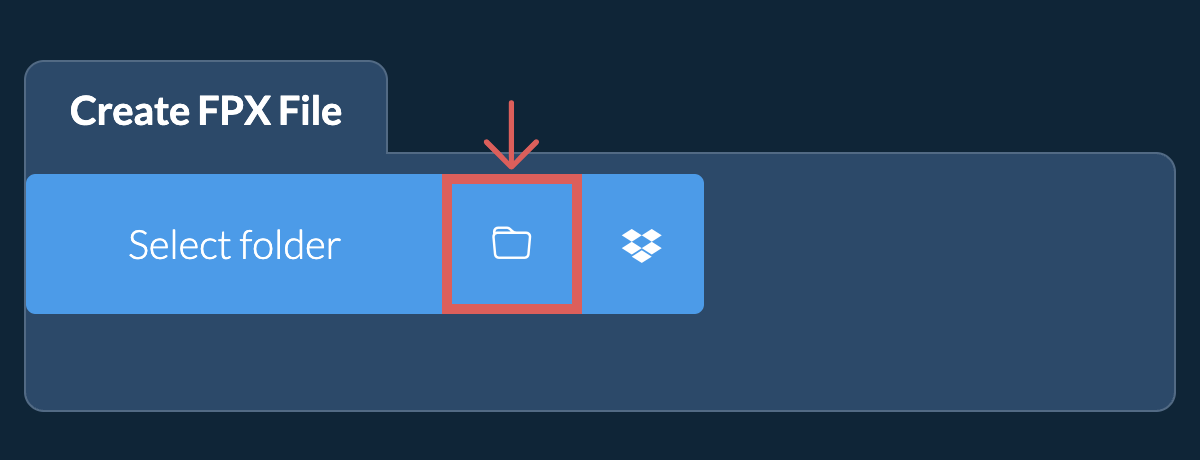
Select files to archive To add files to your FPX archive, you have two options:
-
Click "Select files to archive" to open the file chooser
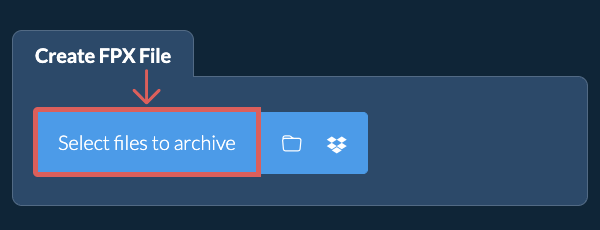
- Drag and drop files and folders directly onto ezyZip
Click "Select files to archive" to open the file chooser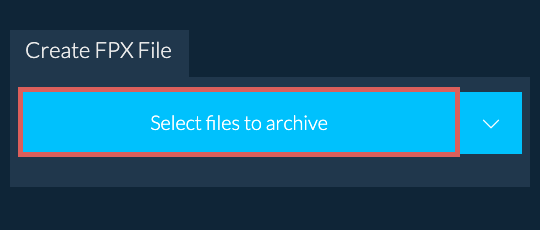
-
-
(Optional) Set compression level(Optional) Set the desired compression level by clicking the down arrow next to "Create FPX File" button.
-
Click Create FPX FileClick "Create FPX File". It will start compressing the files.
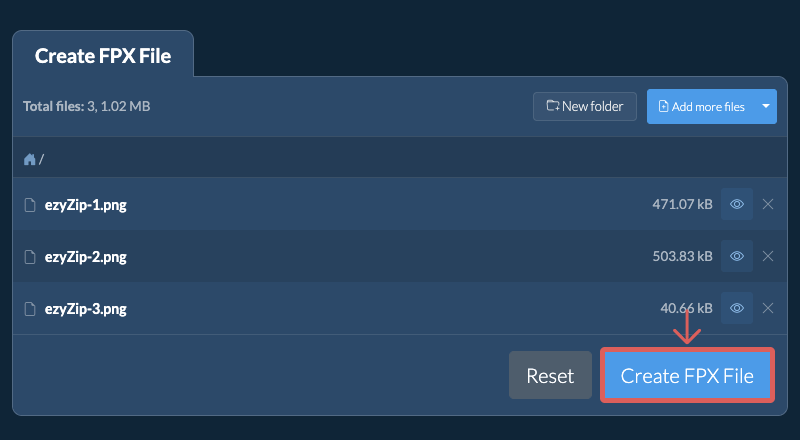
-
Save your archiveClick "Save FPX File" to save the archive to selected destination folder.
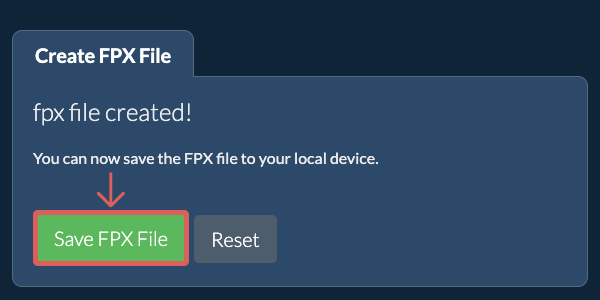
-
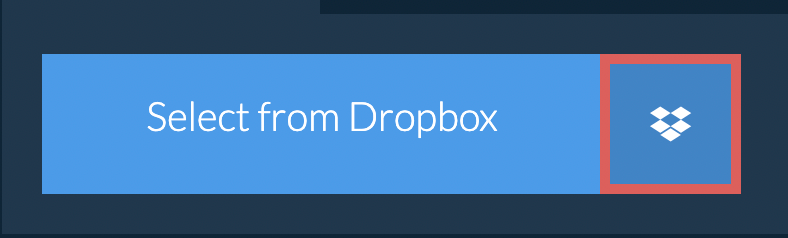
Select from DropboxClick the down arrow (▾) next to the file selection button, then choose "Select from Dropbox".
-
Pick your filesA small ezyZip window opens. Click "Continue to Dropbox", sign in to Dropbox if asked, then pick what you want to compress.
-
Compress your filesezyZip downloads your selection into your browser. Then follow the instructions above.
-
Save to DropboxWhen your file is ready, click the down arrow (▾) next to the save button and choose "Dropbox". The first time, Dropbox asks you to allow ezyZip access.
Files are saved in the /Apps/ezyZip folder.
-
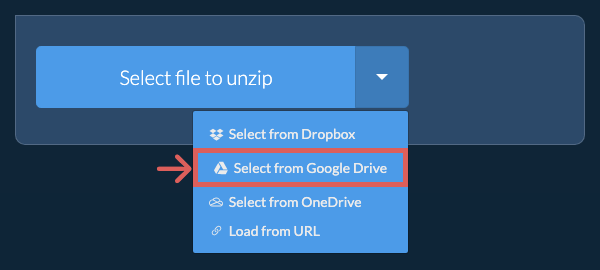
Select from Google DriveClick the down arrow (▾) next to the file selection button, then choose "Select from Google Drive".
-
Sign in and pick filesA Google Drive window opens. Sign in to Google if asked, allow ezyZip to access the files you choose, then pick what you want to compress.
-
Compress your filesezyZip downloads your selection into your browser. Then follow the instructions above.
-
Save to Google DriveWhen your file is ready, click the down arrow (▾) next to the save button and choose "Google Drive". Sign in to Google if asked.
Files are saved in the My Drive/ezyZip folder.
-
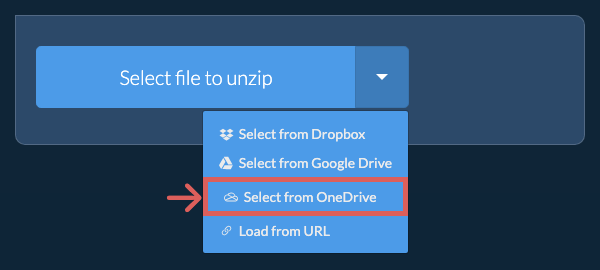
Select from OneDriveClick the down arrow (▾) next to the file selection button, then choose "Select from OneDrive".
-
Sign in and pick filesA OneDrive window opens. Sign in with your personal Microsoft account if asked and allow ezyZip access, then pick what you want to compress.
-
Compress your filesezyZip downloads your selection into your browser. Then follow the instructions above.
-
Save to OneDriveWhen your file is ready, click the down arrow (▾) next to the save button and choose "OneDrive". Sign in with your Microsoft account if asked.
Files are saved in the Apps/ezyZip folder.
Frequently asked questions
We are continuously updating the system, so ensure you are using the latest version of one of the popular browsers or their variants. (e.g. Chrome, Firefox, Safari, Opera).
Please let us know via the feedback form if you have any issues.
An FPX file is a game archive format used by Tactical Intervention, a multiplayer first-person shooter built on Valve's Source engine. Similar to VPK files, FPX archives contain game assets including models, textures, sounds, and other resources. The format was developed specifically for Tactical Intervention by Minh Le, co-creator of Counter-Strike.
FPX files serve the same purpose as VPK archives but are tailored for the Tactical Intervention game engine. They allow packaging of game resources into a single distributable archive. Note that ezyZip creates single volume FPX files.
ezyZip processes files directly in your browser. Unlike most online tools, your files are not uploaded to our servers, which means faster processing and better privacy. Take a look at the feature comparison below and we think you'll agree that ezyZip is the better choice for your file conversion needs.
| Feature | ezyZip | Other Online Tools |
|---|---|---|
| No Software Installation | Works Directly in Browser | Works Directly in Browser |
| Processing Location | Your Browser (No Upload) | Their Servers (Upload Required) |
| Privacy & Security | 100% Private (Files Never Leave Your Device) | Files Uploaded, Accessible by Others |
| Processing Speed | Fast (No Upload/Download Time) | Slow (Upload + Process + Download) |
| Registration Required | Never | Often Required for Large Files |
| Works Offline | Yes (After Page Load) | No |
| Supported Formats | 350+ Archive Formats | Limited Format Support |
| Cost | 100% Free | Free with Limitations / Paid Tiers |
| Established | Since 2009 (15+ Years) | Recent (May Disappear) |
Why client-side archiving is faster for large FPX files
When you create a FPX archive with ezyZip, the compression runs entirely in your browser using WebAssembly (WASM). Here is why our local engine outperforms server-based archivers:
- On-Demand Codec LoadingMultiple compression codecs — including Deflate, LZMA, Brotli, and Zstandard — are compiled to WASM and loaded only when needed, executing at near-native CPU speed without installing any software. Each codec is optimized for its specific algorithm, so ezyZip automatically selects the most efficient encoder for your chosen archive format.
- Parallel Web WorkersCompression runs in dedicated Web Workers on separate threads, keeping the browser interface fully responsive even during CPU-intensive operations. This means you can continue browsing, editing documents, or working in other tabs while your archive is being created in the background.
- Streaming OutputCompressed data streams directly to your disk via the File System Access API or Origin Private File System (OPFS), so memory usage stays bounded regardless of archive size. Even multi-gigabyte archives can be created without exhausting your browser's memory allocation, since data is flushed to disk in chunks rather than buffered entirely in RAM.
- Zero Network OverheadYour files are read through the browser's File API, eliminating the upload, server queue, and download bottleneck of remote tools. For large files on slow connections, this can reduce total processing time from hours to minutes.
- Configurable Compression LevelsAdjust the compression level to balance speed against file size reduction. Lower levels produce archives quickly for rapid sharing, while maximum compression squeezes out every byte for long-term storage or bandwidth-constrained transfers.