
Conversion instructions below
How to convert ZIP to CRX file?
-
Select your ZIP file To select the ZIP file, you have two options:
-
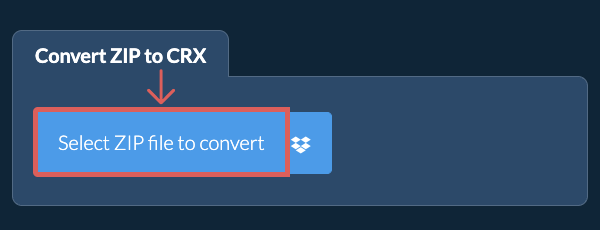
Click "Select ZIP file to convert" to open the file chooser
- Drag and drop the ZIP file directly onto ezyZip
Click "Select ZIP file to convert" to open the file chooser -
-
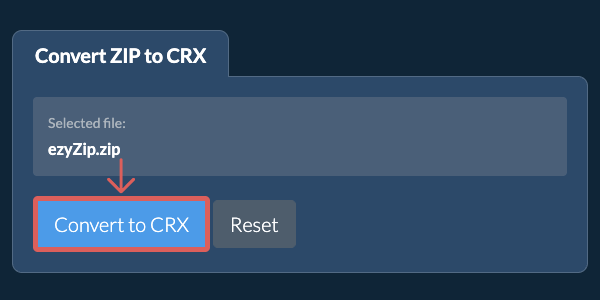
Convert the archiveClick "Convert to CRX". It will initiate the conversion.
-
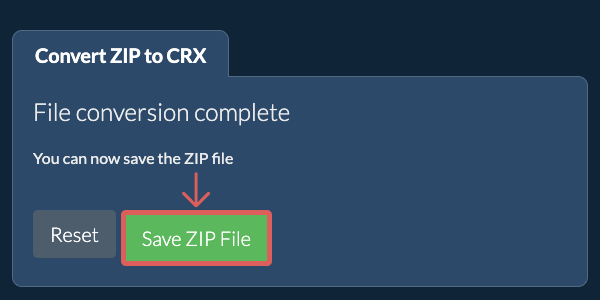
Save the converted fileClick "Save CRX File" to save it to your local drive.
More how-to guides
-
Select from DropboxClick the down arrow (▾) next to the ZIP file selection button, then choose "Select from Dropbox".

-
Pick your ZIP fileA small ezyZip window opens. Click "Continue to Dropbox", sign in to Dropbox if asked, then pick your ZIP file.
-
Run the conversionOnce the ZIP file has downloaded into your browser, click "Convert to CRX".
-
Save to DropboxWhen the conversion is done, click the down arrow (▾) next to "Save CRX File" and choose "Dropbox". The first time, Dropbox asks you to allow ezyZip access.
The CRX file is saved in the /Apps/ezyZip folder.
-
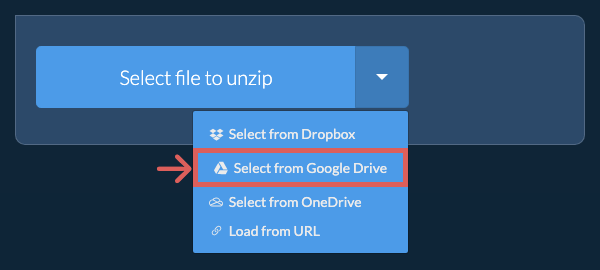
Select from Google DriveClick the down arrow (▾) next to the ZIP file selection button, then choose "Select from Google Drive".
-
Sign in and pick your ZIP fileA Google Drive window opens. Sign in to Google if asked, allow ezyZip to access the files you choose, then pick your ZIP file.
-
Run the conversionOnce the ZIP file has downloaded into your browser, click "Convert to CRX".
-
Save to Google DriveWhen the conversion is done, click the down arrow (▾) next to "Save CRX File" and choose "Google Drive". Sign in to Google if asked.
The CRX file is saved in the My Drive/ezyZip folder.
-
Select from OneDriveClick the down arrow (▾) next to the ZIP file selection button, then choose "Select from OneDrive".
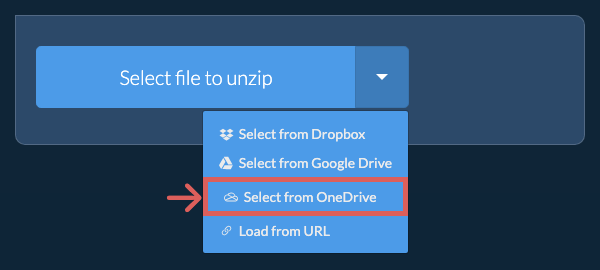
-
Sign in and pick your ZIP fileA OneDrive window opens. Sign in with your personal Microsoft account if asked and allow ezyZip access, then pick your ZIP file.
-
Run the conversionOnce the ZIP file has downloaded into your browser, click "Convert to CRX".
-
Save to OneDriveWhen the conversion is done, click the down arrow (▾) next to "Save CRX File" and choose "OneDrive". Sign in with your Microsoft account if asked.
The CRX file is saved in the Apps/ezyZip folder.
Frequently asked questions
ezyZip is an online tool that supports any OS that can run a modern browser. We have tested it to work with Windows, MacOS, Linux (e.g. Ubuntu, Mint, Debian), Android, ChromeOS (Chromebook), iOS (iPhone, iPad & iPod Touch).
We are continuously updating the system, so ensure you are using the latest version of one of the popular browsers or their variants. (e.g. Chrome, Firefox, Safari, Opera).
Please let us know via the feedback form if you have any issues.
We are continuously updating the system, so ensure you are using the latest version of one of the popular browsers or their variants. (e.g. Chrome, Firefox, Safari, Opera).
Please let us know via the feedback form if you have any issues.
ezyZip is a free web app for converting zip to a CRX file, enabling it to be opened with a standard file extractor (present in most operating systems). No need to install additional software as it runs in the browser. It supports a bunch of other file extraction and file conversion options too.
Unlike other online zip conversion utilities, ezyZip does not require you to upload or download files to a server. It runs locally as a browser app, thus making it much quicker than other similar online conversion tools. There are no usage limits! This also ensures your privacy will be protected as no file data will leave your browser. All common file compression formats (and mos tuncommon) are supported.
CRX files are Chrome Extension packages used to distribute browser extensions and apps. They contain all the files needed for an extension: JavaScript code, HTML, CSS, images, and a manifest file. CRX files are digitally signed ZIP archives with a special header for verification.
Extract CRX files to examine extension code, resources, and functionality.
Extract CRX files to examine extension code, resources, and functionality.