
Conversion instructions below
How to convert folder to PAX file?
Below are step by step instructions for converting a folder online using ezyZip.
-
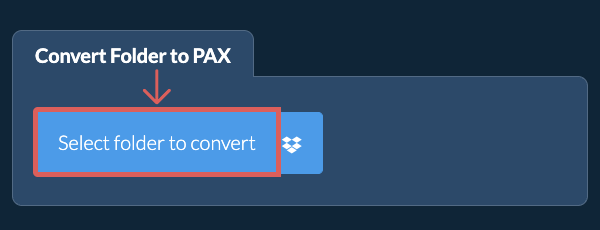
Select folder to convertClick "Select folder to convert" to bring up the folder chooser
-
(Optional) Set compression level(Optional) Set the desired compression level by clicking the down arrow next to "Create PAX File". This will only work with archive formats that support compression.
-
Create PAX archiveClick "Create PAX File". It will start creating the PAX archive from your folder contents.
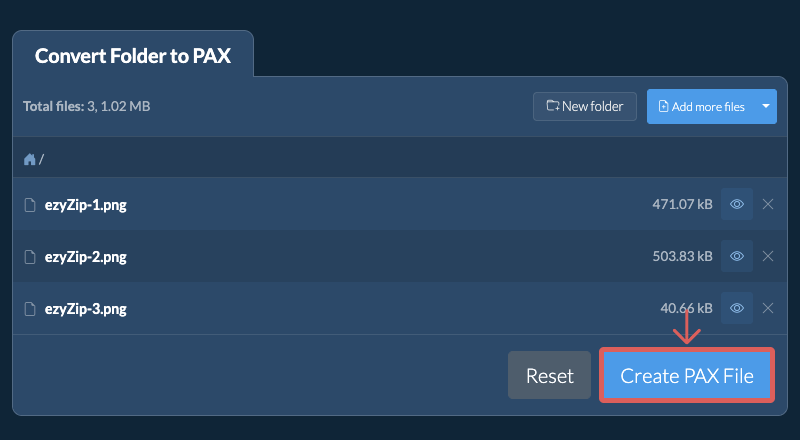
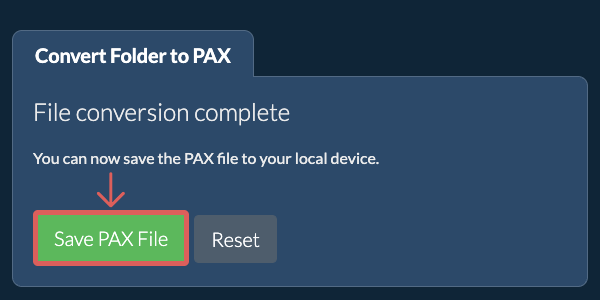
Once all the files are processed, the "Save PAX File" button will appear.
-
Save your archiveClick "Save PAX File" to save the folder archive to your selected destination folder.
Frequently asked questions
We are continuously updating the system, so ensure you are using the latest version of one of the popular browsers or their variants. (e.g. Chrome, Firefox, Safari, Opera).
Please let us know via the feedback form if you have any issues.
A PAX file (Portable Archive Interchange) is an archive format designed to address the limitations of both TAR and CPIO. Created as a POSIX standard, PAX combines the best features of both formats while adding support for longer filenames, larger file sizes, and better handling of different character encodings. It can read and write various archive formats, making it highly versatile for cross-platform file archiving.
PAX archives are particularly valuable in environments where compatibility and portability are crucial. The format supports extended attributes and can handle complex file metadata that might be lost with other archiving methods. When creating PAX archives with ezyZip, date information is not included and empty directories are not added to the resulting archive file.
ezyZip processes files directly in your browser. Unlike most online tools, your files are not uploaded to our servers, which means faster processing and better privacy. Take a look at the feature comparison below and we think you'll agree that ezyZip is the better choice for your file conversion needs.
| Feature | ezyZip | Other Online Tools |
|---|---|---|
| No Software Installation | Works Directly in Browser | Works Directly in Browser |
| Processing Location | Your Browser (No Upload) | Their Servers (Upload Required) |
| Privacy & Security | 100% Private (Files Never Leave Your Device) | Files Uploaded, Accessible by Others |
| Processing Speed | Fast (No Upload/Download Time) | Slow (Upload + Process + Download) |
| Registration Required | Never | Often Required for Large Files |
| Works Offline | Yes (After Page Load) | No |
| Supported Formats | 350+ Archive Formats | Limited Format Support |
| Cost | 100% Free | Free with Limitations / Paid Tiers |
| Established | Since 2009 (15+ Years) | Recent (May Disappear) |