
Conversion instructions below
How to convert PAX to TAR.GZ file?
Here are the steps to convert PAX to TAR.GZ archive using ezyZip.
-
Select files to convert To select the PAX file, you have two options:
-
Click "Select PAX file to convert" to open the file chooser

- Drag and drop the PAX file directly onto ezyZip
Click "Select PAX file to convert" to open the file chooser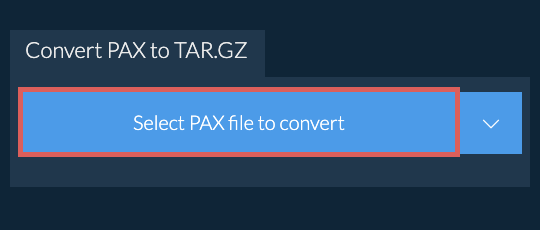
-
-
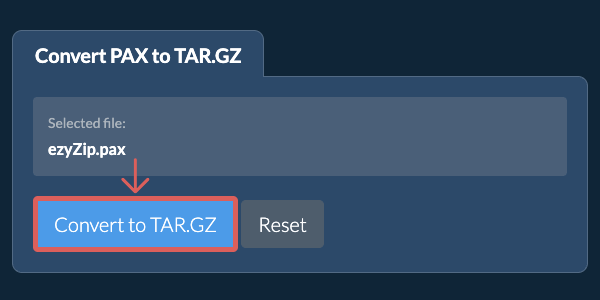
Convert your fileClick "Convert to TAR.GZ". It will start the conversion process which will take some time to complete.
-
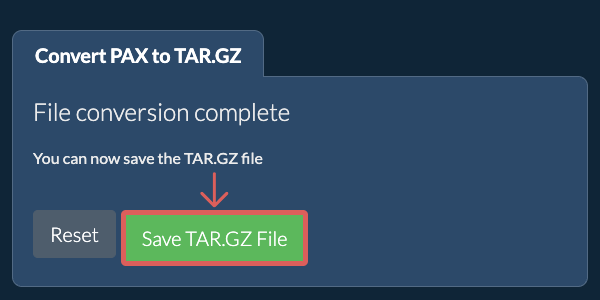
Save the converted fileClick on "Save TAR.GZ File" to save the converted TAR.GZ file to your selected destination folder.
-
Select from DropboxClick the down arrow (▾) next to the PAX file selection button, then choose "Select from Dropbox".

-
Pick your filesA small ezyZip window opens. Click "Continue to Dropbox", sign in to Dropbox if asked, then pick what you want to convert.
-
Follow the instructionsezyZip downloads the PAX file(s) into your browser. Then follow the instructions above.
-
Save to DropboxWhen your file is ready, click the down arrow (▾) next to the save button and choose "Dropbox". The first time, Dropbox asks you to allow ezyZip access.
Files are saved in the /Apps/ezyZip folder.
-
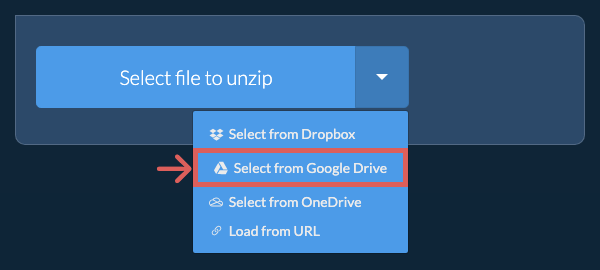
Select from Google DriveClick the down arrow (▾) next to the PAX file selection button, then choose "Select from Google Drive".
-
Sign in and pick filesA Google Drive window opens. Sign in to Google if asked, allow ezyZip to access the files you choose, then pick what you want to convert.
-
Follow the instructionsezyZip downloads the PAX file(s) into your browser. Then follow the instructions above.
-
Save to Google DriveWhen your file is ready, click the down arrow (▾) next to the save button and choose "Google Drive". Sign in to Google if asked.
Files are saved in the My Drive/ezyZip folder.
Frequently asked questions
We are continuously updating the system, so ensure you are using the latest version of one of the popular browsers or their variants. (e.g. Chrome, Firefox, Safari, Opera).
Please let us know via the feedback form if you have any issues.
ezyZip is a free online PAX to TAR.GZ converter that runs in your browser. No need to install any additional converter software. It supports a myriad of other file conversion options too.
Unlike other online archive conversion utilities, ezyZip does not require uploading files to a server. Use it as many times as you want, completely free. It runs locally as a browser app, thus making it much quicker than other online conversion tools. This also ensures your privacy will be protected as no file data will leave your browser.
Extract PAX archives to access files with preserved Unix attributes.
This is a common pattern used in unix/linux environments to bundle multiple files for easier distribution or backup.
Tgz and tar.gz files are essentially the same thing, just with different file extension.
ezyZip processes files directly in your browser. Unlike most online tools, your files are not uploaded to our servers, which means faster processing and better privacy. Take a look at the feature comparison below and we think you'll agree that ezyZip is the better choice for your file conversion needs.
| Feature | ezyZip | Other Online Tools |
|---|---|---|
| No Software Installation | Works Directly in Browser | Works Directly in Browser |
| Processing Location | Your Browser (No Upload) | Their Servers (Upload Required) |
| Privacy & Security | 100% Private (Files Never Leave Your Device) | Files Uploaded, Accessible by Others |
| Processing Speed | Fast (No Upload/Download Time) | Slow (Upload + Process + Download) |
| Registration Required | Never | Often Required for Large Files |
| Works Offline | Yes (After Page Load) | No |
| Supported Formats | 350+ Archive Formats | Limited Format Support |
| Cost | 100% Free | Free with Limitations / Paid Tiers |
| Established | Since 2009 (15+ Years) | Recent (May Disappear) |
Why client-side PAX to TAR.GZ conversion is faster and more private
ezyZip converts PAX to TAR.GZ entirely within your browser's WebAssembly runtime. Here is why local conversion outperforms server-based converters:
- Optimal Engine RoutingThe system automatically selects the best decompression and compression engine for each format combination. For large archives, streaming conversion stages data through the Origin Private File System to avoid memory exhaustion while maintaining throughput.
- No Double TransferServer-based converters require uploading the source archive and downloading the converted result — local processing eliminates this double-transfer overhead. For a 1 GB archive on a typical connection, this saves 30+ minutes of transfer time alone.
- Single-Pass TranscodingDecompression and re-encoding happen in a single pipeline within WASM, avoiding intermediate temporary files. The input format is decoded and the output format is encoded in one continuous pass, minimizing disk writes and processing time.