
Instructions below
How do I convert IRCAM files?
-
Choose your file To select the IRCAM file, you have two options:
-
Click "Select IRCAM file to convert" to open the file chooser
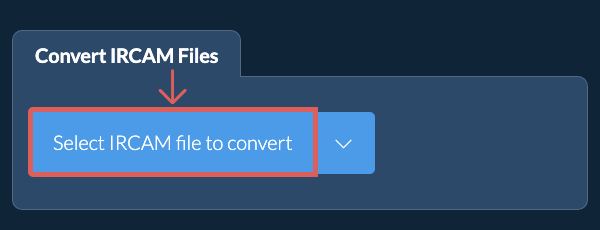
- Drag and drop the IRCAM file directly onto ezyZip
-
-
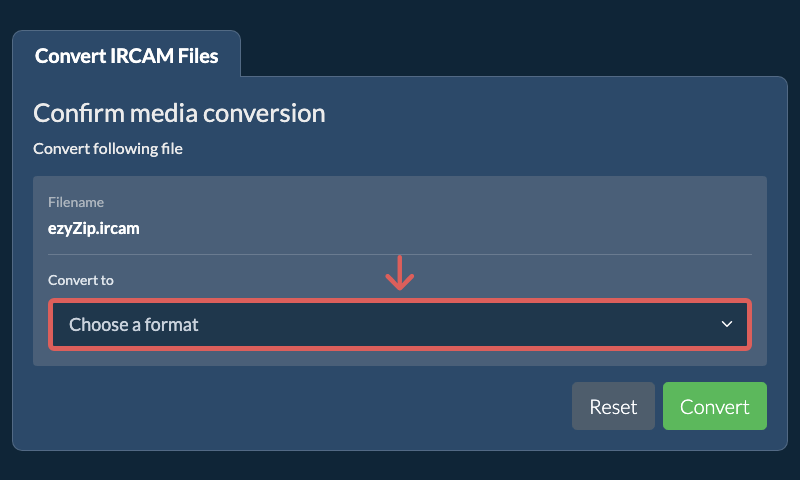
Choose a formatOpen the "Convert to" list and choose the format you want. The "Most popular" formats are at the top.
-
Convert the fileClick the convert button. It shows the format you chose, for example "Convert to MP4". Your browser may ask where to save the file. The conversion runs in your browser, so large files can take a few minutes.
-
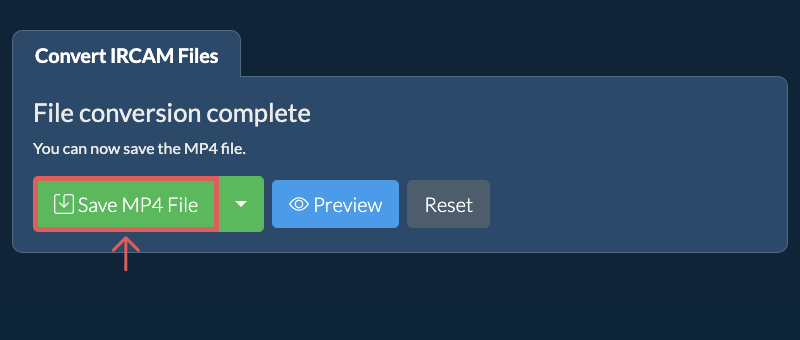
Save the converted fileWhen the conversion has finished, check ezyZip's message. If it says your file has been saved, you're done. Otherwise, click the save button, for example "Save MP4 File".
-
Select from DropboxClick the down arrow (▾) next to the IRCAM file selection button, then choose "Select from Dropbox".

-
Pick your filesA small ezyZip window opens. Click "Continue to Dropbox", sign in to Dropbox if asked, then pick what you want to convert.
-
Follow the instructionsezyZip downloads the selected IRCAM file into your browser. Then follow the instructions above.
-
Save to DropboxWhen your file is ready, click the down arrow (▾) next to the save button and choose "Dropbox". The first time, Dropbox asks you to allow ezyZip access.
Files are saved in the /Apps/ezyZip folder.
-
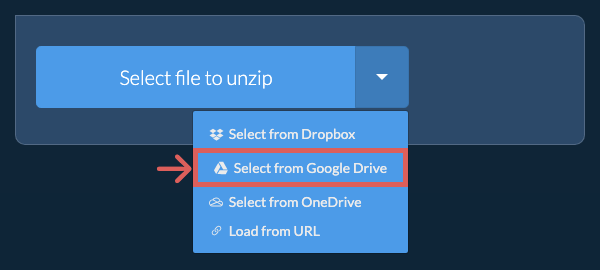
Select from Google DriveClick the down arrow (▾) next to the IRCAM file selection button, then choose "Select from Google Drive".
-
Sign in and pick filesA Google Drive window opens. Sign in to Google if asked, allow ezyZip to access the files you choose, then pick what you want to convert.
-
Follow the instructionsezyZip downloads the selected IRCAM file into your browser. Then follow the instructions above.
-
Save to Google DriveWhen your file is ready, click the down arrow (▾) next to the save button and choose "Google Drive". Sign in to Google if asked.
Files are saved in the My Drive/ezyZip folder.
-
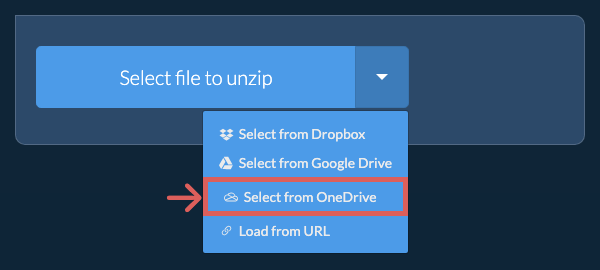
Select from OneDriveClick the down arrow (▾) next to the IRCAM file selection button, then choose "Select from OneDrive".
-
Sign in and pick filesA OneDrive window opens. Sign in with your personal Microsoft account if asked and allow ezyZip access, then pick what you want to convert.
-
Follow the instructionsezyZip downloads the selected IRCAM file into your browser. Then follow the instructions above.
-
Save to OneDriveWhen your file is ready, click the down arrow (▾) next to the save button and choose "OneDrive". Sign in with your Microsoft account if asked.
Files are saved in the Apps/ezyZip folder.
Frequently asked questions
A typical IRCAM file can be converted to 40 audio formats and 17 video formats. Each video shows a still picture: your own cover image, or ezyZip's default picture if you don't add one. The converter lists the formats for the file you select.
Choose a video format in "Convert to" at the top of this page, or open one of these pages:
Choose an audio format in "Convert to" at the top of this page, or open one of these pages:
We are continuously updating the system, so ensure you are using the latest version of one of the popular browsers or their variants. (e.g. Chrome, Firefox, Safari, Opera).
Please let us know via the feedback form if you have any issues.
ezyZip is a free online IRCAM converter that runs in your browser. No need to install any additional converter software. It supports a myriad of other media conversions too.
Unlike other online media conversion utilities, ezyZip does not add watermarks or require uploading files to a server. Use it as many times as you want, completely free. It runs locally as a browser app, making it much quicker than other online conversion tools. This also helps protect your privacy, because your files are processed in your browser and are not uploaded.
ezyZip processes files directly in your browser. Unlike most online tools, your files are not uploaded to our servers, which means faster processing and better privacy. Take a look at the feature comparison below and we think you'll agree that ezyZip is the better choice for your file conversion needs.
| Feature | ezyZip | Other Online Tools |
|---|---|---|
| No Software Installation | Works Directly in Browser | Works Directly in Browser |
| Processing Location | Your Browser (No Upload) | Their Servers (Upload Required) |
| Privacy & Security | Files Stay on Your Device | Files Uploaded, Accessible by Others |
| Processing Speed | Fast (No Upload/Download Time) | Slow (Upload + Process + Download) |
| Works Offline | Yes (After Page Load) | No |
| Media Format Support | 110+ Audio/Video Formats | Limited (MP4, MP3 only) |
| Output Quality | Clean Output, No Watermarks | Watermarks Added |
| Established | Since 2009 (15+ Years) | Recent (May Disappear) |